Zapier Task Costs: Automate Across Apps or Consolidate?

Zapier is a no-code automation platform that connects your apps with Zaps (a trigger plus actions), ideal for teams that need fast cross-app automations without engineering. It links 9,000+ apps, so the odds are good your tools are covered. The tradeoff is that you pay by task volume, so busy multi-step workflows get pricey faster than people expect.
TL;DR:
- A five action Zap that succeeds once uses five tasks; triggers, filters, paths, and failed or halted steps use none, so estimate actions per run.
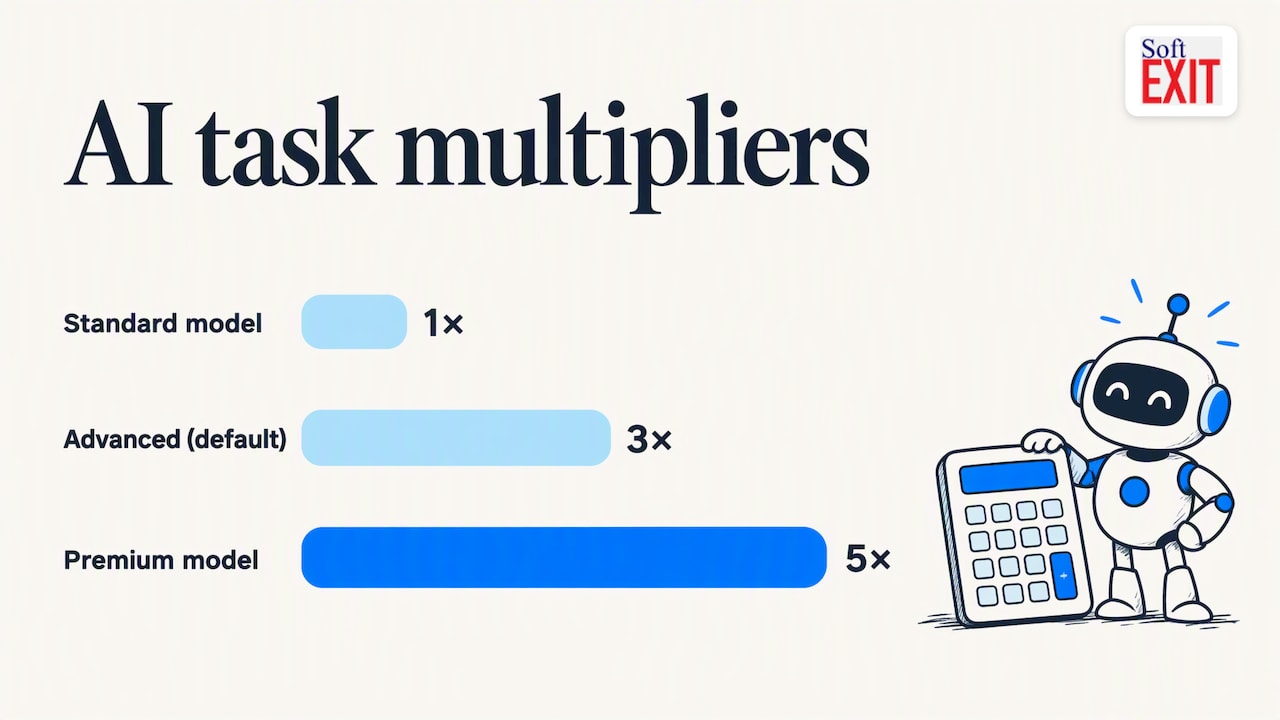
- Starting June 15, 2026, AI by Zapier charges per model tier: Standard uses 1x, Advanced 3x, and Premium 5x, with Advanced as the default.
- Before committing to an integration, verify its exact triggers and actions, premium status, and polling interval; lower plan polling can delay alerts by minutes.
- Track task use during a trial before choosing a plan; frequent triggers and workflows with many actions raise costs, while overlapping tools may merit consolidation.
- Place filters early because they consume no tasks and can prevent later actions from running when a deal or record fails your conditions.
1. How do Zapier workflows actually run?
A Zap is a trigger plus one or more actions. The trigger is the event that starts everything, say a new form submission or an incoming email. The actions are what happens next: create a record, send a message, update a row. You can build one in the Zap editor, from a template, or with Copilot, and then watch runs in Zap History.
Where it gets interesting is how the trigger notices the event. Triggers are either polling or instant. A polling trigger checks the app on a schedule, and the interval depends on your plan. An instant trigger relies on a webhook, so the app pings Zapier the moment something happens. That difference decides whether a lead alert lands in seconds or a few minutes later, which matters if your sales team is racing to call back.
The building blocks you will meet most often:
- Searches: look up an existing record before you create a duplicate.
- Filters: stop a run unless conditions match.
- Formatter: clean up dates, text, and numbers between steps.
- Delays: pause a run before the next action fires.
- Loops and sub-Zaps: repeat steps over line items or reuse a chunk of logic.
- Zap History: a log of every run, so you can see what fired and what broke.
When something goes wrong, you do not have to guess. Zap History shows the failing step, and you can replay a run after fixing the cause, such as an expired connection or a mapping error. Flood protection also exists to pause a Zap that suddenly fires far more often than normal, which saves you from a runaway loop eating your task allowance. Think of it as a smoke detector: annoying when it goes off, but you’ll be glad it exists.
One practical habit: name your steps and your Zaps clearly from day one. “Zap 14 copy” tells you nothing at 4:45 on a Friday. “New lead to CRM and Slack” tells you everything.
2. Which built-in tools should you reach for?
Zapier is more than a pipe between two apps. The platform pairs its trigger-and-action model with filters, conditional paths, loops, scheduling, webhooks, Tables, Forms, and AI Agents, and knowing which tool fits which job saves both time and tasks.
- Filters and Paths: filters only let a run continue when conditions match, and Paths branch a Zap into different routes, such as sending enterprise leads one way and small leads another. Neither consumes tasks, which makes them cheap insurance.
- Formatter: converts a messy “03/04/26” into the date format your CRM wants, splits full names, and trims stray spaces.
- Delay and Looping: wait two days before a follow-up, or process each line item on an invoice one by one.
- Searches: find a contact first, then update or create only if it is missing.
- Webhooks: catch or send data for apps that have no ready-made integration.
- Tables and Forms: Zapier’s own lightweight database and form builder. Their steps do not use tasks, and you can trigger Zaps from Tables records, fields, or views.
- AI by Zapier and Copilot: AI steps can summarize, classify, or draft text inside a Zap, and Copilot helps you build the Zap itself.
- Code steps and SDK: for the moments when you need a little custom logic or want to build your own app integration.
Pro Tip: Put a filter as early as possible. If a Zap only matters for deals over a certain size, filter first so the later steps never run on the rest.
A quick story, because every automation shop has one. A friend of ours once built a Zap that emailed the team whenever a spreadsheet row changed, then added a second Zap that updated that same spreadsheet whenever an email arrived. Before long, two Zaps were happily passing the same message back and forth like a very polite game of tennis. Flood protection caught it, the inbox did not forgive it, and the lesson stuck: before you switch anything on, ask whether your action could re-trigger your trigger.
3. How broad are Zapier’s integrations, and how do you check one?
Zapier lists 9,000+ apps in its directory, covering the usual suspects: CRMs, email platforms, spreadsheets, project tools, chat apps, and payment systems. Reviewers regularly point to the large integration library and workflow management as headline strengths. Breadth is not the same as depth, though, so check the specific app before you promise a workflow to your boss.
Open the app’s directory entry and look for these things:
- Triggers available: does the app expose the event you need, like “new deal” or “updated contact”?
- Actions available: can you create or update the exact record type you want?
- Premium status: some app integrations are flagged as premium and need a paid plan.
- Polling or instant: the entry tells you how the trigger fires, which affects speed and, as we covered, how fast your Zap reacts.
Instant triggers feel snappier and avoid wasted checks, while polling triggers can lag by minutes on lower plans. If an app only offers polling and you need real-time speed, plan around it or look for a webhook route.
Before you build anything production-grade, validate the integration with a short checklist:
- Connect the account and confirm the permissions are what you expect.
- Pull in sample data and check that every field you need actually shows up.
- Run one end-to-end test with a throwaway record.
- Confirm what happens on duplicates and on empty fields.
A little time spent checking first beats a lot of debugging after launch.
4. How does Zapier count tasks, and what will it cost?
Pricing is where most Zapier surprises happen, so let’s get the rules straight. A task is any successful action step. Triggers never use one. Filter and path steps do not count, and failed or halted steps do not count either.
That is the core of it, and it means a five-action Zap that runs once uses five tasks, not one. Some products carry their own rates: Lead Router uses 5 tasks per routed lead, MCP tool calls use 2 tasks each, and AI steps multiply by model tier. For the latter, starting June 15, 2026, AI by Zapier steps use model-tier pricing: Standard is 1x, Advanced is 3x, and Premium is 5x per run, with Advanced as the default. Tool calls add to that base rate, and the feature sits on Professional, Team, and Enterprise plans.
Here is a simple way to estimate usage: multiply the successful actions in each run by how often the Zap runs, then account for any special task rates or AI model-tier multipliers. An AI step can make a noticeable difference to the total, so check your actual usage before choosing a plan.
Picking a plan comes down to usage. Task volume is the main factor, and paid plans unlock multi-step workflows, webhooks, paths, autoreplay, and extra admin controls for teams and enterprises. Run a trial, watch your real task count for a few weeks, then pick the plan that fits with a little headroom.
5. What can you automate on day one?
Short, boring, repeatable jobs are where Zapier shines. Three starter patterns:
- Sales: a form submission creates a CRM lead, pings the owner in Slack, and sends a follow-up email.
- Marketing: a survey response lands in a spreadsheet and starts an email sequence.
- Operations: an invoice email arrives, the attachments get saved to cloud storage, and accounting gets notified.
Here is a copy-ready sales pattern you can build:
- Choose your form app as the trigger and select “new submission.”
- Add a Search step to look for the email address in your CRM.
- Add an action to create the lead if no match exists, mapping name, email, company, and the “how did you hear about us” field.
- Add a Slack action that posts the lead’s name and source to your sales channel.
- Add an email action with a short, human follow-up, mapping the first name so it does not say “Hi there”.
- Test with sample data, then turn the Zap on.
Test checklist: does the CRM record show every field, did the Slack message land in the right channel, and did the email render the first name correctly?
Pro Tip: Submit a test lead with a weird name, like one with an apostrophe or an accent. If your mapping survives that, it will survive real life.
6. How do you build your first Zap without breaking anything?
Start small. A quick start guide walks you through building from a template, the Zap editor, or Copilot, then testing and publishing. Use this checklist:
- Pick your path: a template if someone already built your use case, Copilot if you can describe it in a sentence, or the blank editor if you want full control.
- One trigger, one action: resist the urge to build a monster on the first try.
- Test with sample data before you flip the switch.
- Turn it on and watch the first few runs in Zap History.
- Fix quick failures: reconnect an expired app login, or correct a field mapping that came through empty.
- Replay a failed run once the cause is fixed.
Good first exercises: a Slack alert for new form entries, a spreadsheet log for new customers, or a calendar event for each new booking. Pick whatever annoys you most this week.
7. When is Zapier the right fit, and when does consolidation matter?
Our view: Zapier is great glue. If you have a handful of SaaS tools and no engineers, it gets you quick wins that would otherwise sit in a backlog for months. The catch shows up with growth. Dozens of Zaps, high-frequency triggers, and multi-step chains push costs up and make ownership fuzzy: who built that Zap, and what breaks if they leave? When a large share of your automations exist only to shuttle data between tools that overlap, building more of the process inside one no-code platform can be the stronger strategic move.
— James Edgell
8. Could you cut the cross-tool glue by building inside one platform?
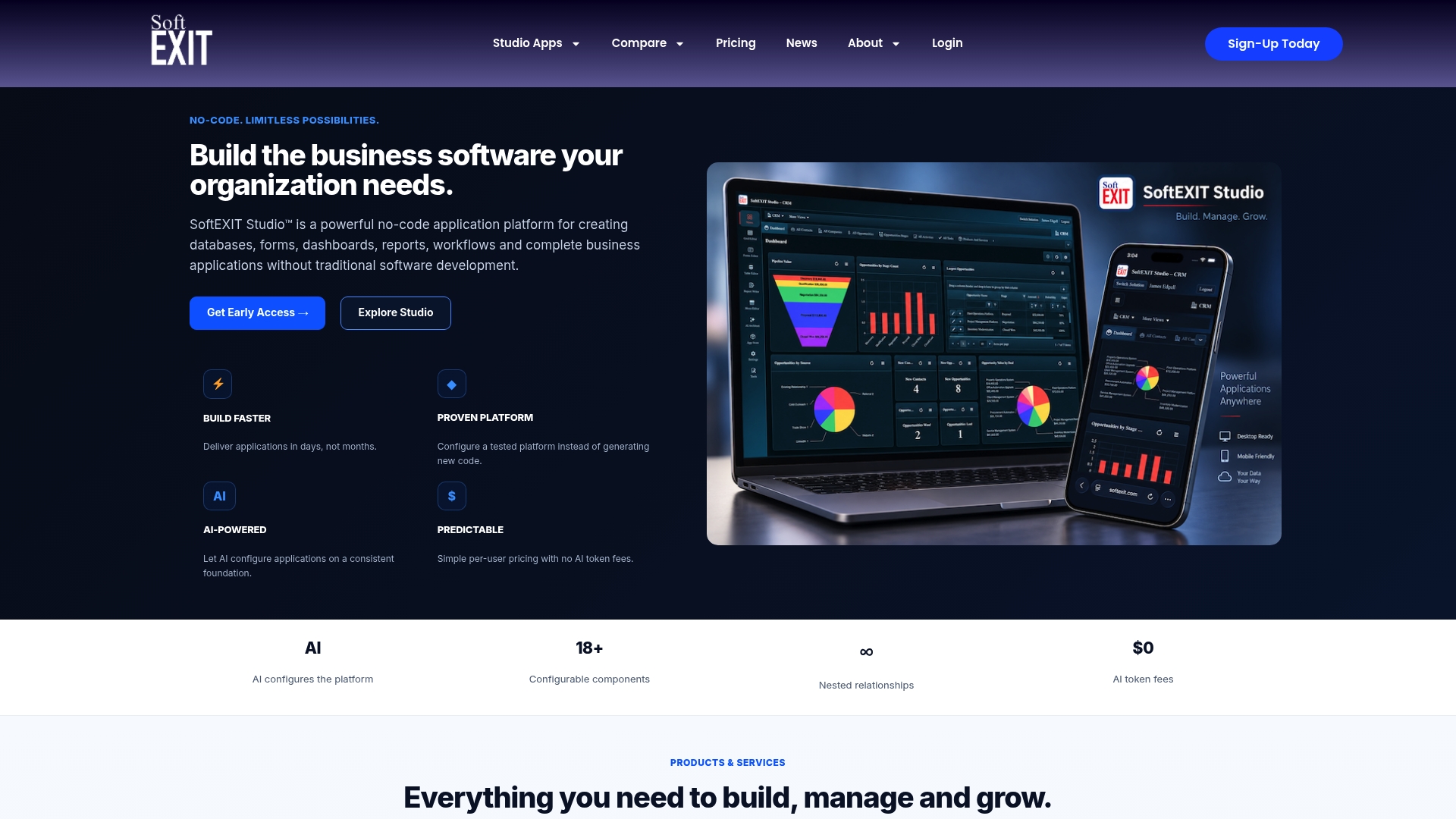
If your Zaps mostly stitch together a CRM, a database, and a few forms, we think you should ask whether those pieces need to be separate at all. Our platform, SoftEXIT Studio™, is a no-code, AI-assisted app builder, and SoftEXIT CRM runs on it. You can manage companies, contacts, opportunities, pipelines, tasks, and service in one place, then extend into inventory, contracts, or risk tracking with role-based security and protected fields. That means fewer handoffs to automate and fewer places for data to drift.
This approach makes the most sense when you want custom processes, tighter governance, and predictable costs. Our Starter plan is $14 per month per user, and Professional is $24 per month per user. Want to see it first? Watch the SoftEXIT CRM walkthrough.
FAQ
What is the purpose of Zapier?
Zapier connects the apps you already use so one event can trigger work in others, without code. You build a Zap with a trigger and actions, and it runs on its own. Teams use it for lead routing, notifications, and data syncs.
Is Zapier outdated?
Not really. Zapier keeps adding features such as Tables, Forms, Copilot, and AI steps, and it still lists 9,000+ apps. The better question is whether task-based pricing suits your volume.
What are some alternatives to Zapier for workflow automation?
Alternatives fall into a few categories: open-source or self-hosted automation tools, enterprise integration platforms, and no-code app platforms that keep workflows inside one system. Which fits depends on your technical skills, budget, and how many tools you need to connect.
Is Zapier down right now?
Check Zapier’s own status page for live information, since outages are short-lived and change by the hour. If a single Zap is failing, look at Zap History first, because an expired app connection is far more common than a platform outage.
Sources
- Zapier Software Pricing, Alternatives & More 2026 | Capterra
- Learn key concepts in Zap workflows – Zapier