Connect Your CRM to ChatGPT with MCP: A Buyer’s Guide

You can connect a CRM directly to ChatGPT through the Model Context Protocol (MCP), an open standard that lets ChatGPT call tools and read data in another system. The CRM you choose decides how easy that is. SoftEXIT Studio includes a CRM, plus AI Agent integration over MCP, in a membership that starts at $5 per user/month, billed annually. Your team can ask ChatGPT about contacts and pipelines without building a connector first.
Key Takeaways
- MCP lets ChatGPT query and, with permission, update live CRM records in plain English, with no data copying.
- Full write support needs a ChatGPT Business, Enterprise or Education plan and a workspace admin who enables Developer Mode.
- The connection acts with the connected user’s permissions, so give each person their own account and never an admin login.
- SoftEXIT Studio Starter costs $5 per user/month and Professional costs $9 per user/month, both billed annually. Optional Agent subscriptions add organization-wide AI connectivity.
What MCP does for a CRM
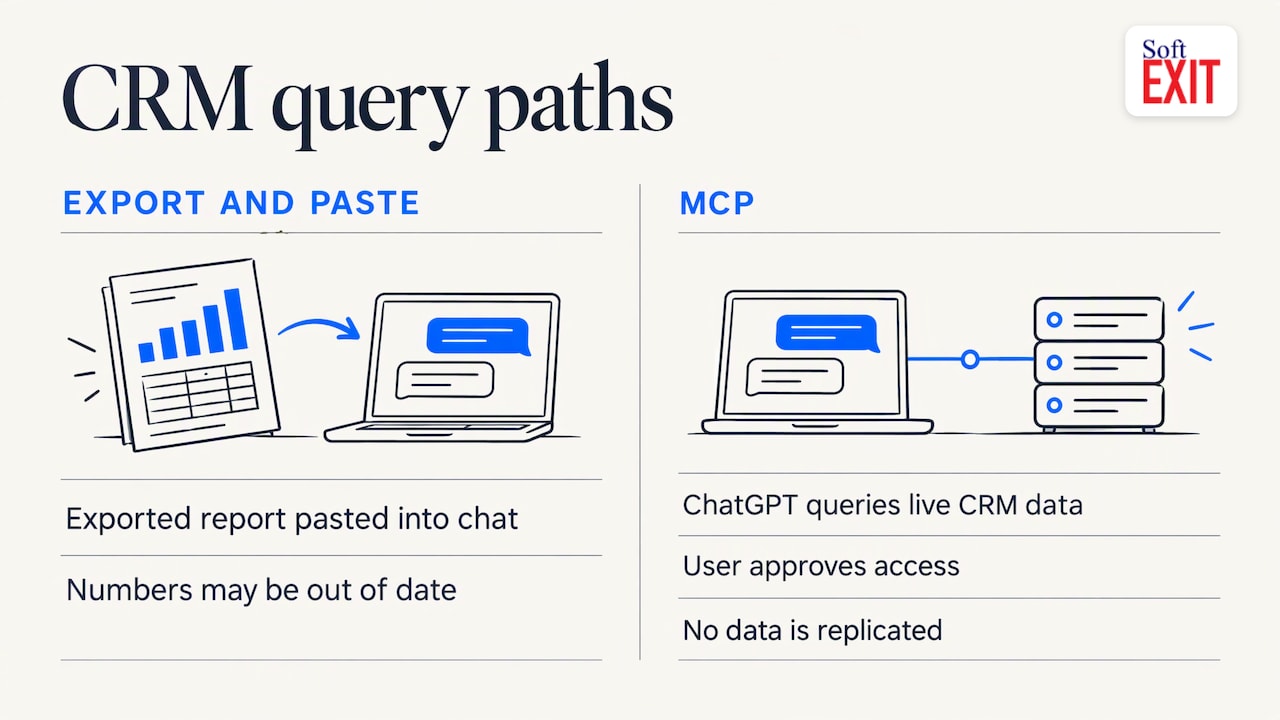
Without MCP, someone exports a report, pastes it into a chat and hopes the numbers are current. With MCP, ChatGPT reaches the CRM itself. In one documented example, ChatGPT turns plain-language questions into SQL queries and runs them against live CRM data, such as “show me all customers from the last 30 days”. Nothing is replicated, and the user approves access.
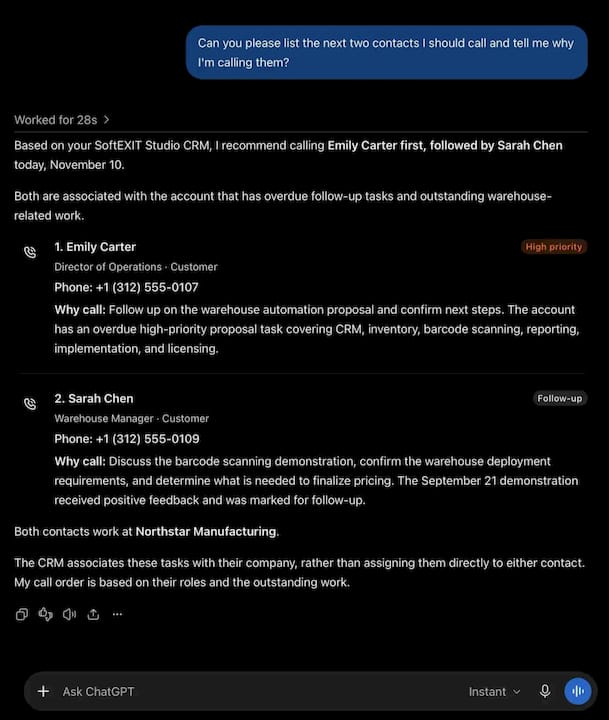
For a sales team, that means asking about stalled opportunities, summarizing an account before a call, or finding contacts with no activity this quarter. With write access enabled, it can also create or update records.
OpenAI has built on this standard. Its Apps SDK is built on MCP, the open standard connecting ChatGPT to outside tools and data.
What you need before you connect
Setup is short if the prerequisites are in place. According to Boomi’s setup documentation, you need:
- The right ChatGPT plan. Business, Enterprise or Education plans give full write-capable MCP support. Plus and Pro get read-only custom MCP servers.
- A workspace admin or owner. They enable Developer Mode under Workspace Settings, Permissions & Roles, Connected Data.
- A reachable MCP server. It must be available over public HTTPS, using SSE or Streamable HTTP, with OAuth, no authentication or mixed authentication.
That third item is where many teams stall. Most CRMs leave you to find, host or build the server. A platform that ships its own MCP integration removes that step, which is why we built it into SoftEXIT Studio. The Agent plans add organization-wide AI connectivity: Agent Starter is $19 per month, Agent Growth is $50 per month and Agent Scale is $99 per month, with tiered monthly usage allowances.
How the connection works, step by step
OpenAI’s custom MCP server guide describes the flow:
- Add the server. In ChatGPT, open Plugins, select the plus button, then Add custom MCP server.
- Name it and give the URL. Enter a name, an optional description and the server URL. A Secure MCP Tunnel is an option for servers that are not public.
- Choose authentication. OAuth, no authentication or mixed. OAuth is the right choice for a CRM, because every user signs in as themselves.
- Review the risk warning and create it. Then install it before using it in a conversation.
- Test with a read-only question first. Ask for a simple record lookup and confirm the answer against the CRM.
The usual failure is a server that connects but does not behave. Peliqan’s 2026 guide says new tools do not appear until an admin refreshes the approved tool snapshot, write actions fail on Pro, and local servers are unreachable without the desktop app or a tunnel. If the tool list comes back empty, re-authorize and confirm the endpoint is online. Setting this up on a platform where the MCP layer and the CRM share one permission model leaves fewer pieces to debug.
What ChatGPT can do with contacts, opportunities and pipelines
The exact tool list depends on the server. With SoftEXIT Studio, users can retrieve information, analyze business data, generate insights and perform authorized record operations through natural-language interactions. In a CRM, that maps to everyday work:
| Task | Example request |
|---|---|
| Contacts | “Find every contact at accounts in the healthcare segment.” |
| Opportunities | “Which deals have had no activity for 14 days?” |
| Pipeline | “Summarize this quarter’s pipeline by stage.” |
| Record updates | “Update this opportunity’s stage and add a call note.” (authorized users only) |
Because SoftEXIT Studio runs CRM, contracts and other apps on one platform, the same assistant can work across them. You can customize fields, forms, dashboards and reports without code.
Lock down permissions before anyone connects
An assistant that can write can also make mistakes. OpenAI notes that by default write actions require confirmation in ChatGPT, and that incorrect write actions can destroy, alter or share data. It also advises connecting only to MCP servers you trust.
To keep access safe:
- Connect each person with their own account. CompanyView reports that major CRMs run the MCP server with the connected user’s permissions, so an admin login gives the assistant admin reach across every pipeline.
- Start read-only. Add write access once the team trusts the answers.
- Keep the confirmation prompts on for record changes.
- Verify results. Oracle’s NetSuite documentation says AI clients may still produce incorrect results, so check answers against the source records and review logs for unusual tool use.
SoftEXIT Studio applies its existing security controls and user permissions to AI access, with role-based security and protected fields. For more on the access side, see this overview of security and user permissions for sales tools.
Our perspective
Most teams that want ChatGPT on their CRM end up assembling parts: a CRM, a hosting layer for the MCP server, an authentication setup and a separate subscription for each extra app. Each part is another place for permissions to drift.
We built SoftEXIT Studio so the CRM, the other business apps and the AI connection share one platform and one security model. Apps such as CRM and Contract Management come with the membership, so adding a second application does not add a second subscription.
Our AI Architect, included in Professional, builds on Studio’s established framework rather than generating custom code. That keeps what you build easier to maintain, and it keeps AI access within the permissions your team already set.
James Edgell
Start with SoftEXIT Studio
SoftEXIT Studio gives you a customizable CRM, Contract Management and more under one membership. Starter costs $5 per user/month, billed annually. Professional costs $9 per user/month, billed annually, and adds AI Architect. There is a 21 day free trial, and Agent subscriptions add AI assistant connectivity.
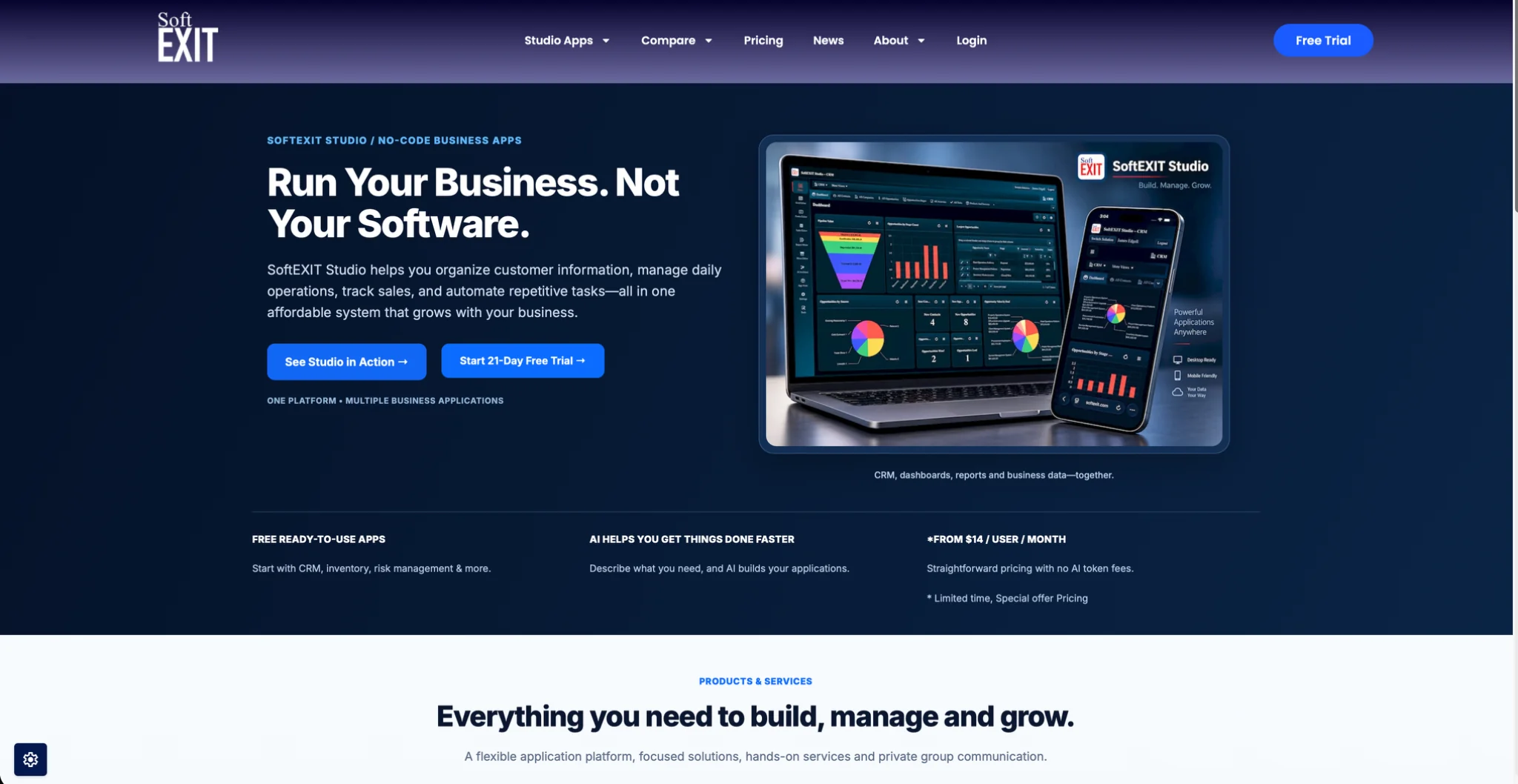
See plans and pricing or the SoftEXIT CRM page to get started.
FAQ
Do I need a paid ChatGPT plan to connect a CRM with MCP?
Yes. Full write-capable MCP support needs a Business, Enterprise or Education plan, and Plus and Pro get read-only custom servers, per Boomi’s documentation. A workspace admin must also enable Developer Mode.
Can ChatGPT change my CRM records?
Yes, when the server exposes write tools and your plan supports them. ChatGPT asks for confirmation on write actions by default. Users can only change what their own permissions allow.
Is my CRM data copied into ChatGPT?
With a live MCP connection, ChatGPT queries the CRM when you ask, rather than holding a replicated copy. Access follows the connected user’s permissions, so connect each person individually.
What should I check if the connection fails?
Confirm you are in the right ChatGPT account, start a fresh conversation and name the app with a read-only test. Re-authorize if sign-in went stale. Ask an admin to refresh the tool list if new tools are missing, as Carly’s troubleshooting guide describes.
Sources
- CData: Use ChatGPT to talk to your Dynamics CRM data
- OpenAI: Introducing apps in ChatGPT and the Apps SDK
- Boomi: OpenAI ChatGPT setup and configuration
- OpenAI: Add custom MCP server
- Peliqan: ChatGPT MCP plans, setup and what breaks
- CompanyView: Connecting your CRM to ChatGPT or Claude
- Oracle: NetSuite AI Connector Service
- Carly: ChatGPT api_tool and list_resources errors